Configuring - Component Balance Analysis Rule
A Component Balance analysis is configured as part of a Sigmafine based model, a Model with elements built on the Sigmafine Element templates.
To configure the analysis rule, follow the steps below using either the System Explorer or the Modeler.
Follow the steps under either System Explorer or Modeler.
In the Model Analyses navigation panel go to the Model for which you are creating the analysis.
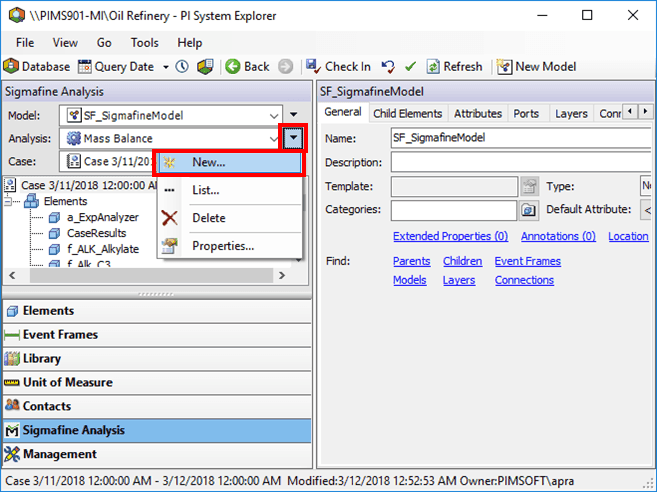
Click the Analysis
 actions menu button and select New from the menu, to open the Choose Analysis Template window.
 System Explorer
- On the SF Analysis Toolbar, click the New Analysis button to open the Choose Analysis Template window.

The following steps are common to both System Explorer and ProcessBook (Modeler) configurations.
In the Choose Analysis Template window, \<None> is selected by default; this value is fine for what you need to do.
Click OK.
The Analysis Properties window opens.
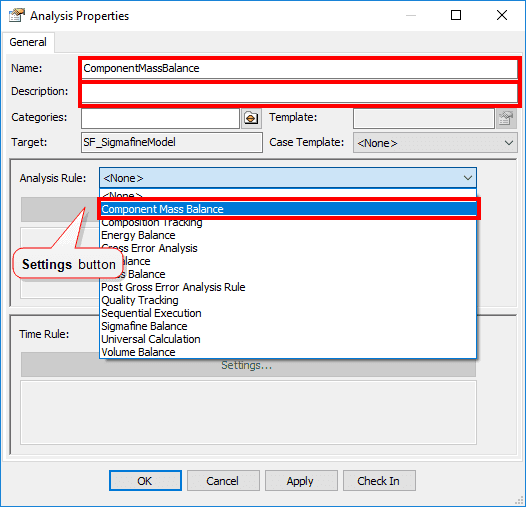
In the Name box, type a name for the new analysis.
In the Description box, type a short description of the analysis.
Click the Analysis Rule down-arrow and select Component Mass Balance.
Under Analysis Rule, click the Settings button (as shown in Figure 277).
The Mass Balance Configuration window opens.
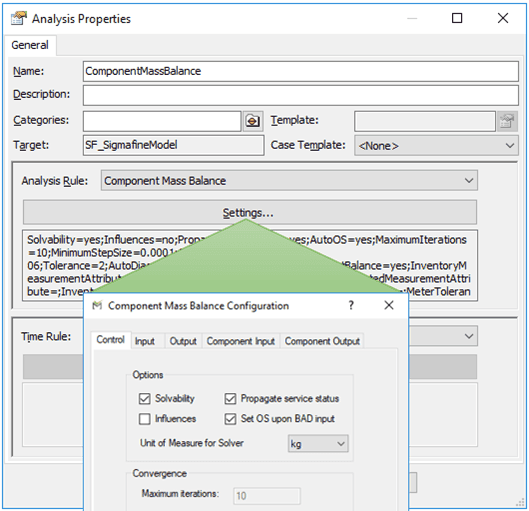
The table below provides a summary of the four tabs found in the Mass Balance Configuration window.
Sigmafine Balance Configuration window - Tabs Summary
Use this tab ... to configure these parameters Control Options – Reconciliation optionsConvergence – Iterative solution parameters.Output – Reconciliation output options Input Inventories – Measured value and corrected value attributesMeters – Measured value and corrected value attributesTransfers – Measured value and corrected value attributes Output Measurement and Flows - Select Attributes for meters, inventories, transfers and flows.Balances – Select balance Attributes on nodes, inventories, and processes. Component Input Analyzers - Select Attribute for Component Data.Reactors - Configure reaction equations and select reaction list attributes. Component Output Complex analyzers only - Select Attribute for reconciled component data. Select the properties and options as described in the following \topics, beginning with the Control tab.
Note: Gross Error Configuration – Use this optional feature to configure the Gross Error Detection Analysis Rule. This enables validation steps before and after the Mass Balance is performed. The Pre-validate steps check the initial Model configuration and the collected input data for possible errors. The Post-Validate steps check the resultant data from the Mass Balance for further error. For complete information about the configuration of Gross Error Detection and a list of performed checks, see Gross Error Analysis Rule.